This is default featured slide 1 title

Lorem ipsum dolor sit amet, consectetur adipisicing elit, sed do eiusmod tempor incididunt ut labore et dolore magna aliqua. Ut enim ad minim veniam. blogger theme by BTemplates4u.com.

This is default featured slide 2 title

Lorem ipsum dolor sit amet, consectetur adipisicing elit, sed do eiusmod tempor incididunt ut labore et dolore magna aliqua. Ut enim ad minim veniam. blogger theme by BTemplates4u.com.

This is default featured slide 3 title

Lorem ipsum dolor sit amet, consectetur adipisicing elit, sed do eiusmod tempor incididunt ut labore et dolore magna aliqua. Ut enim ad minim veniam. blogger theme by BTemplates4u.com.

This is default featured slide 4 title

Lorem ipsum dolor sit amet, consectetur adipisicing elit, sed do eiusmod tempor incididunt ut labore et dolore magna aliqua. Ut enim ad minim veniam. blogger theme by BTemplates4u.com.

This is default featured slide 5 title

Lorem ipsum dolor sit amet, consectetur adipisicing elit, sed do eiusmod tempor incididunt ut labore et dolore magna aliqua. Ut enim ad minim veniam. blogger theme by BTemplates4u.com.

Monday, August 1, 2011

Firesheep Makes Facebook Hacking Easy

Recently a new firefox addon Firesheep have been a cause of thousands of email accounts, with Firesheep the hacker can control any account without even knowing the username and password of the desired account, As Facebook is worlds most popular Social Networking website, therefore it has been the major victim of it, Firesheep uses Http Session hijacking attack to gain unauthorized access to a Facebook or any other account
What is Session Hijacking?

In a Http session hijacking attack an attacker steals victims cookies, Cookies stores all the necessary Information about one’s account , using this information you can hack anybody’s account and change his password. If you get the Cookies of the Victim you can Hack any account the Victim is Logged into i.e. you can hack Facebook Google, Yahoo, Orkut, Flickr etc or any other email account

How can a Hacker use Firesheep to Hack a Facebook or any other account?

Now I will tell you how can a hacker use firesheep to hack a facebook or any other account, You will need the following things:
Method
1. First of all download "Firesheep" from the above link and use the "openwith" option in the firefox browser

2. Once you have installed firesheep on firefox web browser, Click on view at the top, then goto sidebar and click on Firesheep


3. Now click on the top left button "Start capturing" and it will start to capture the session cookies of people in your wifi network, This will show you the list of those people whose cookies are captured and have visited unsecured website known to firesheep, Double click on the photo and you will be logged in instantly
Firesheep


Getting started with 2-step verification

How it works


Why you should use 2-step verification
2-step verification adds an extra layer of security to your Google Account by requiring you to have access to your phone – as well as your username and password – when you sign in. This means that if someone steals or guesses your password, the potential hijacker still can't sign in to your account because they don't have your phone.


How you sign in with 2-step verification
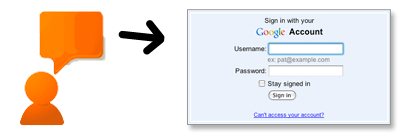
1. When you want to access Google products from your browser, go to that product and enter your username and password.
image of brain with arrow to sign in


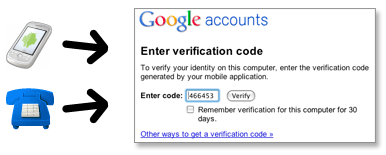
2. You'll next be prompted to enter your verification code, which you'll get from your phone. You'll only have to do this once every 30 days if you so choose.
image of phone to verification screen

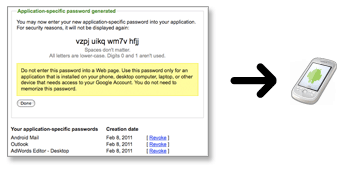
3. Soon after you turn on 2-step verification, non-browser applications and devices that use your Google Account (such as Gmail on your phone or Outlook), will stop working. You'll then have to sign in using your username and a special password you generate for this application. (Don't worry, you'll only have to do this once for each device or application.)
image of application-specific password to phone


What you’ll need
While 2-step verification requires some web savvy, you only need a few basic items:
  1. A phone that is usually available to you when you sign in. This could be:
    • A standard phone (landline or mobile)
    • Any Android device, BlackBerry device, iPhone, iPod Touch, or iPad that can run the Google Authenticator application
  2. A backup phone that you can use if you lose access to your primary phone. This could be:
    • A work or home phone (landline or mobile)
    • The phone of someone you trust, like a friend or family member.
How to get started
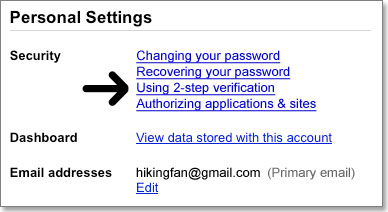
Go to your Accounts settings page and look for the Using 2-step verification link. If you have the link, click it and start the setup process.
If you do not see the link and you are a Google Apps user, you might have to access the 2-step verification setup through a special URL. It is also possible that your domain administrator has not yet set it up for your organization. Check with your domain administrator to find out.


ManageAccount settings page


[This post is originally posted @ google]

Friday, July 29, 2011

A new look for Google Translate for Android

When Google launched the first version of Google Translate for Android in January 2010, we were excited about the year ahead. For the first time, they were bringing the capabilities supported on Google Translate—like machine translation, romanization of non-Roman scripts and spoken translations—to the Android platform. It also offered voice input to let you speak the word or phrase you wanted to translate instead of typing it in, and SMS translation so you could translate SMS messages sent to you in foreign languages.

With new refreshing Translate for Android with several updates to make the app easier to interact with. Among other improvements, they have created better dropdown boxes to help select the languages you want to translate from and into, an improved input box, and cleaner icons and layout.


It also let you in on an experimental feature that’s still in its earliest stages—Conversation Mode. This is a new interface within Google Translate that’s optimized to allow you to communicate fluidly with a nearby person in another language.

In conversation mode, simply press the microphone for your language and start speaking. Google Translate will translate your speech and read the translation out loud. Your conversation partner can then respond in their language, and you’ll hear the translation spoken back to you. Because this technology is still in alpha, factors like regional accents, background noise or rapid speech may make it difficult to understand what you’re saying. Even with these caveats, we’re excited about the future promise of this technology to be able to help people connect across languages.


As Android devices have spread across the globe, we’ve seen Translate for Android used all over. The majority of its usage now comes from outside the United States, and now seen daily usage from more than 150 countries, from India to Mexico to Mozambique. It’s really rewarding for us to see how this new platform is helping us break down language barriers the world over.
Translate supports 53 languages, from Afrikaans to Yiddish, and voice input for 15 languages. You can download the application, available for devices running Android 2.1 and above, by searching for “Google Translate” in Android Market or by scanning the QR Code below.

Tuesday, July 26, 2011

Customize your FaceBook CHAT :-)

It’s been a month now and I haven’t seen a single person who likes the new Facebook chat. People around the world creating groups against this new chat system and complaining to Facebook. The new Facebook chat sidebar only shows the list of people you chat with the most but I don’t think it works correctly as I can see people in my chat list whom I’ve never chatted with on Facebook.

Also, one thing I didn’t get at all is if the person is offline  then why do they need to still be shown on chat? The biggest flaw is that it doesn’t show you who’s online. You need to search A,B,C, just to find online friends. In this post, I’m sharing a trick to find who is online.

So finally, I created my own kinda cheat to get my old nice facebook chat. Here it is for you guys only @ psychocoding
.fbChatSidebar {
overflow: auto !important;
top: inherit !important;
bottom: 0 !important;
height:auto; /*you can change according to your suitability */
border-top: 20px solid #627AAD !important;
}
#globalContainer { left: 0 !important; }

.fbChatSidebar .item { display: none; }

.fbChatSidebar .active { display: block !important; }

Steps to implement this on Chrome (since i prefer chrome :-P)
1. Visit https://chrome.google.com/webstore/detail/pabfempgigicdjjlccdgnbmeggkbjdhd?hl=en and  Download.
2. Click Extension in Chrome Settings and select OPTION under Chrome Stylist
or
Open www.facebook.com and you can see a rainbow icon in your address bar.
3. Right click on it and select option.
4. In Basic -> Select Always
5. In Style -> Paste the above css stylesheet, and click apply changes.

And here you go, with new improved fb chat, just for you :-)


OR 

You can simply drag this userscript into Chrome and it will automatically detect and install it, and your old facebook chat will be back :-)